Show & Hide Attribute Names
When working with a spreadsheet, it can sometimes be useful to quickly identify which cells, headers, and footers contain DDM attributes, rather than seeing the values they display. The Show/Hide Attribute Names feature allows you to do this at the click of a button.
Showing Attribute Names
To display the attribute names in your spreadsheet:
- Click the Show Attribute Names button on the CFE-DDM Ribbon bar tab.

- All DDM attributes in your spreadsheet will be replaced with their attribute name, enclosed in curly brackets. For example, a document number attribute would display as {DOC_NO} and a status attribute would display as {STATUS}.
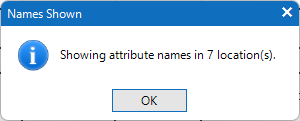
- A message box will be shown confirming the number of attributes that are being shown.
Hiding Attribute Names
To return the attributes back to their normal values:
- Click the Hide Attribute Names button on the CFE-DDM Ribbon bar tab.

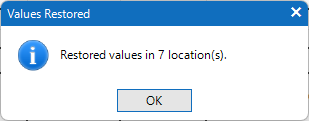
- All attribute names will be replaced back with their current assigned values.
- A message box will be shown confirming the number of attributes that are having their name
💡 Tip: This feature is particularly useful when setting up or reviewing a document, as it allows you to quickly see at a glance which areas of your spreadsheet are controlled by DDM attributes and which contain information entered manually.