View System Logs
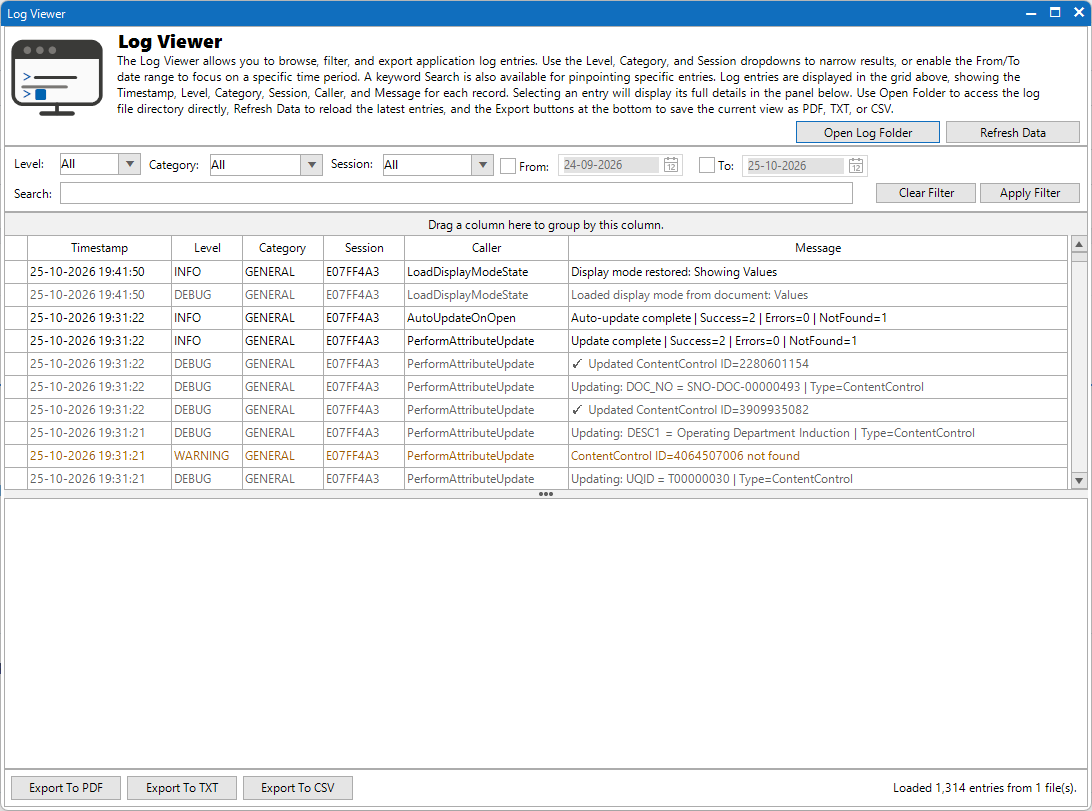
Each add-in has its own independant log file that is stored on each individual system. This log file is stored as a .cfelog file. This log file stores multiple different things which are all designed to be able to identify any issues that have occured with the software.
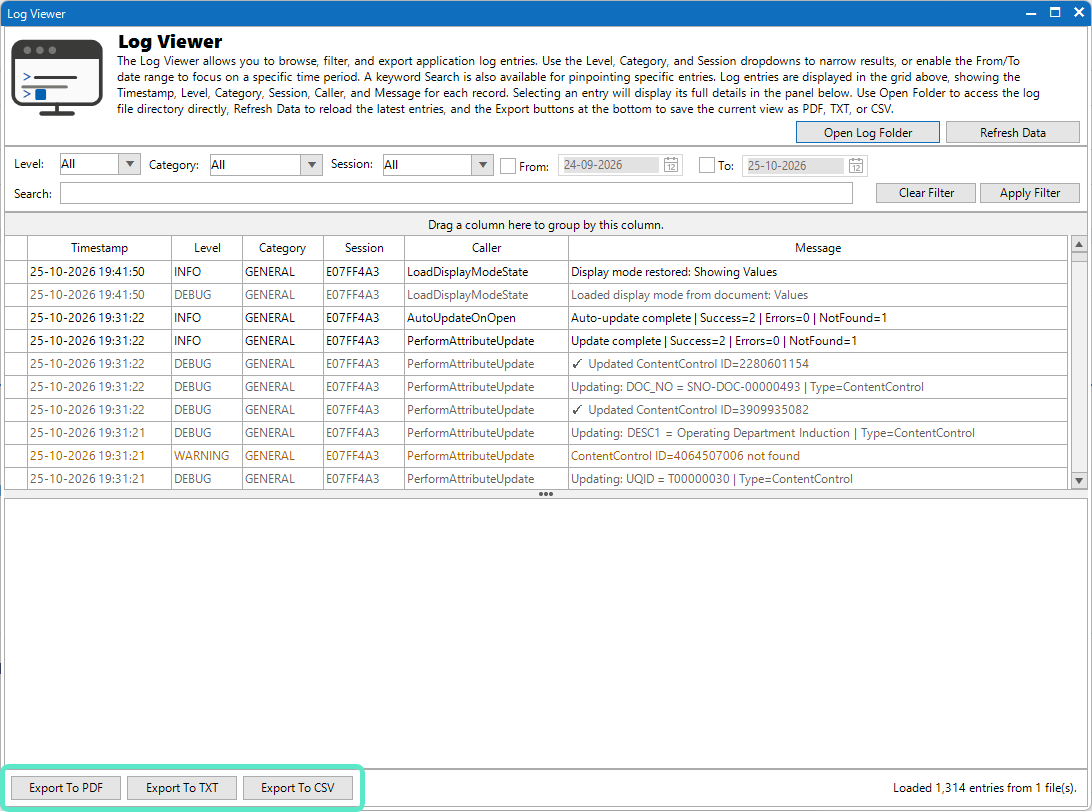
An example of the log viewer screen can be seen below.
Access the Log Files to Send to Support
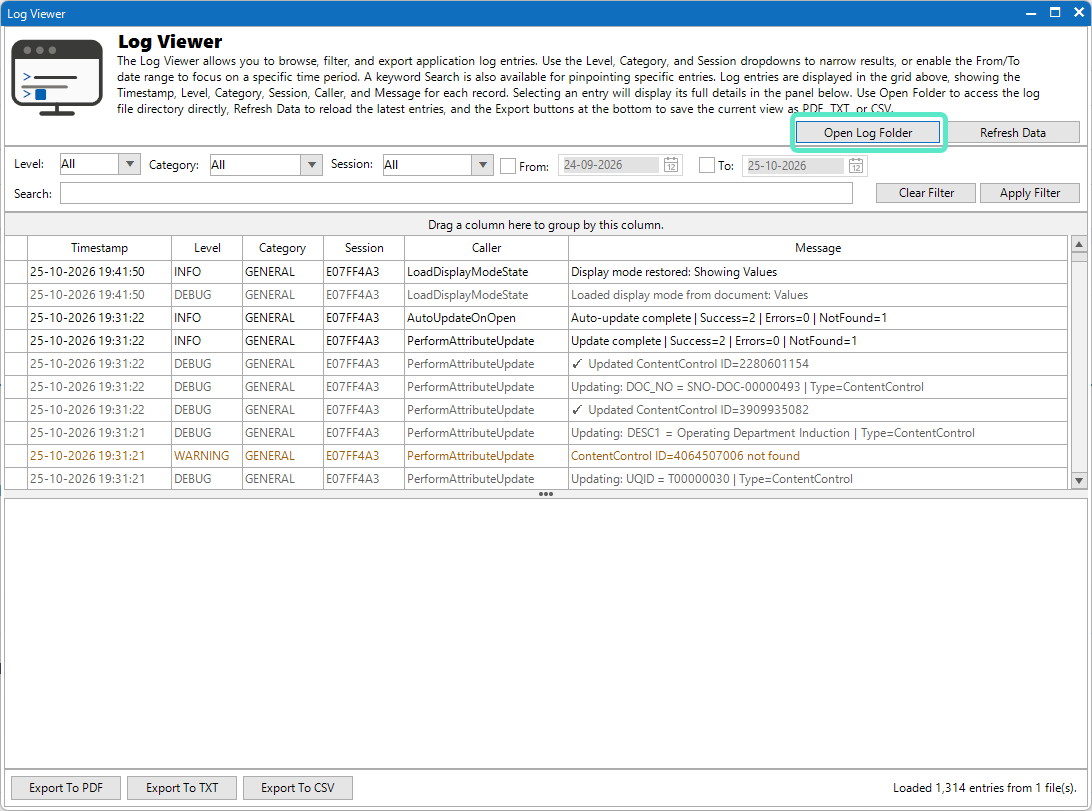
If there is a requirement to send your log file to send it to the ClearFrost Engineering Support Team then you are able to open the folder containing the log file(s) by clicking on the Open Log Folder.
This will then open up the log folder within a new Windows Explorer window. From here you just need to find the relevant log file and you are then able to copy this file to send to the support team.
From here you are also able to delete the log file should you wish to do so.
From here you are also able to delete the log file should you wish to do so.
Refresh Log Data
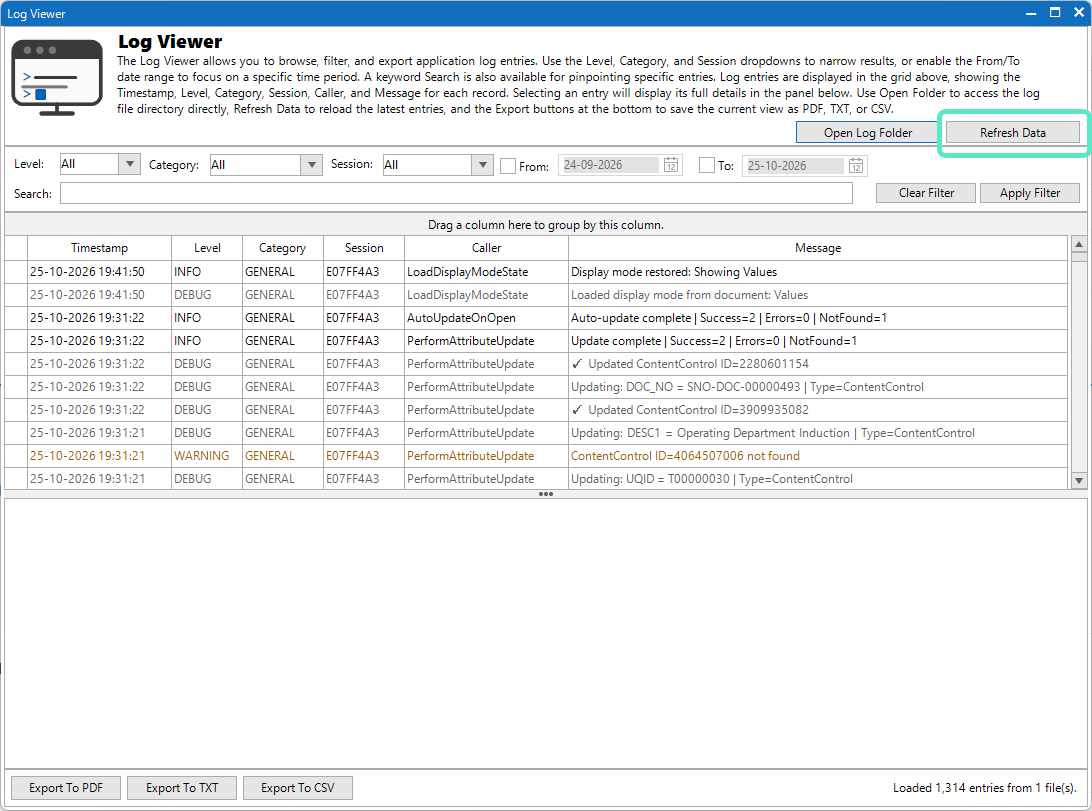
If you have the log viewer open and then carry out an action and want to then see the results in the log you are able to click on the Refresh Data button. This will refresh all data in the window ensuring that the latest information is displayed.
Filtering the Log
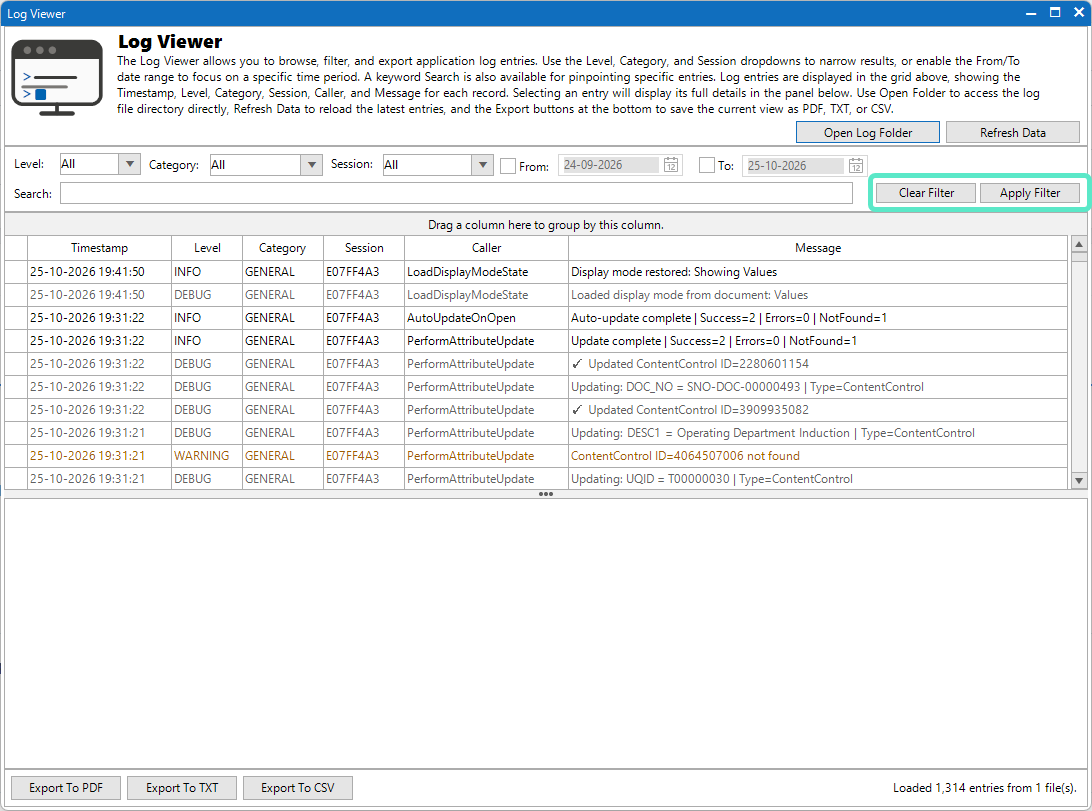
This is probally one of the most important sections of this window. It allows you to search and filter the log results to assist in what you are trying to find. All the search and filter options can be found within this section and you are able to search for specific terms with the search text option, or filter based on date, session, category or level of log entry.
Clicking on the Apply Filter button applies the filter to the results and the Clear Filter button clears all filters that have been applied.
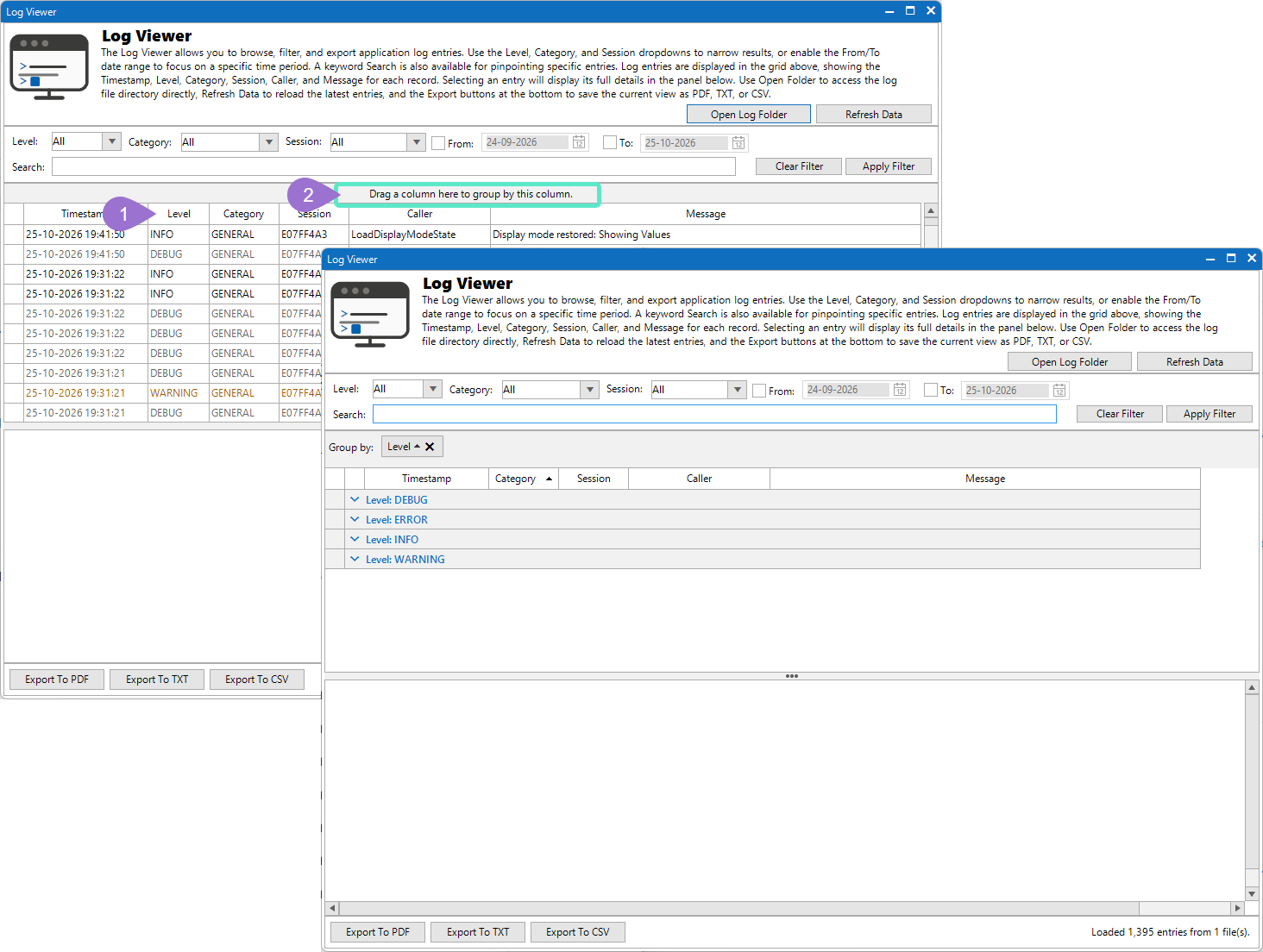
One useful other option is that you are able to drag and drop a column heading into the area that states "Drag a column here to group by this column". Doing that will then group the results based on your criteria providing collapasable sections in the results.
View Entry Details
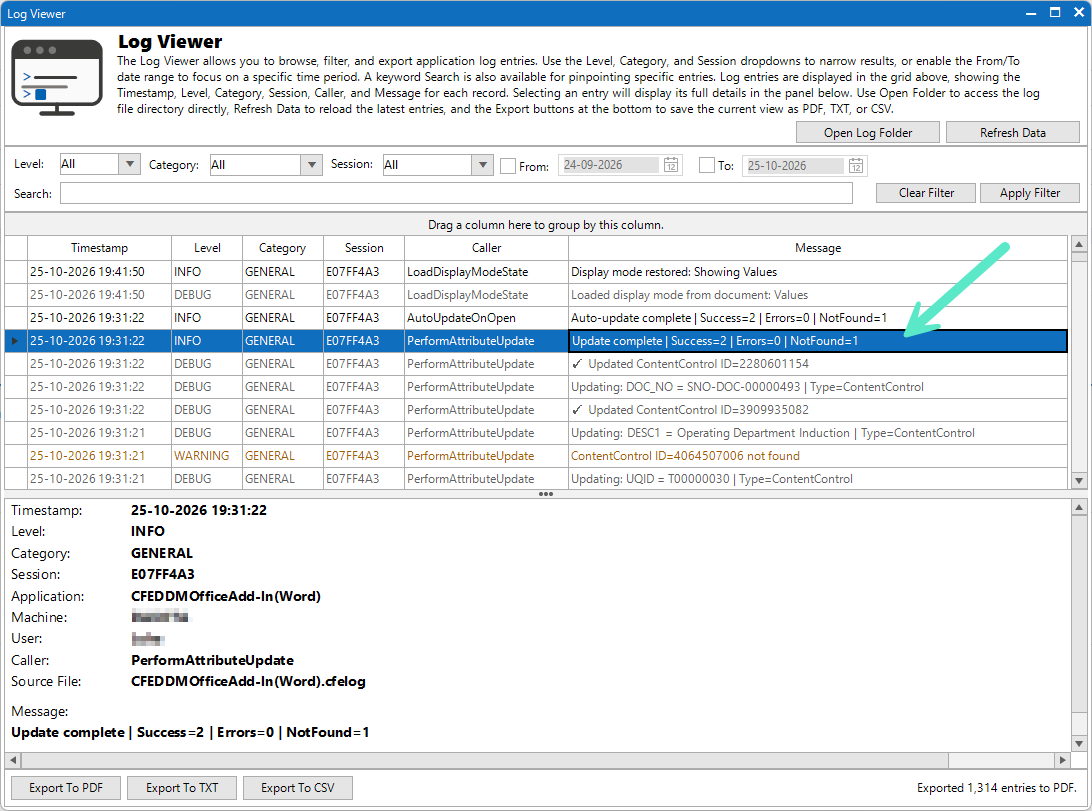
In order to view the full details of a log entry you must select it from the list in towards the top of the screen highlighting the row you wish to view.
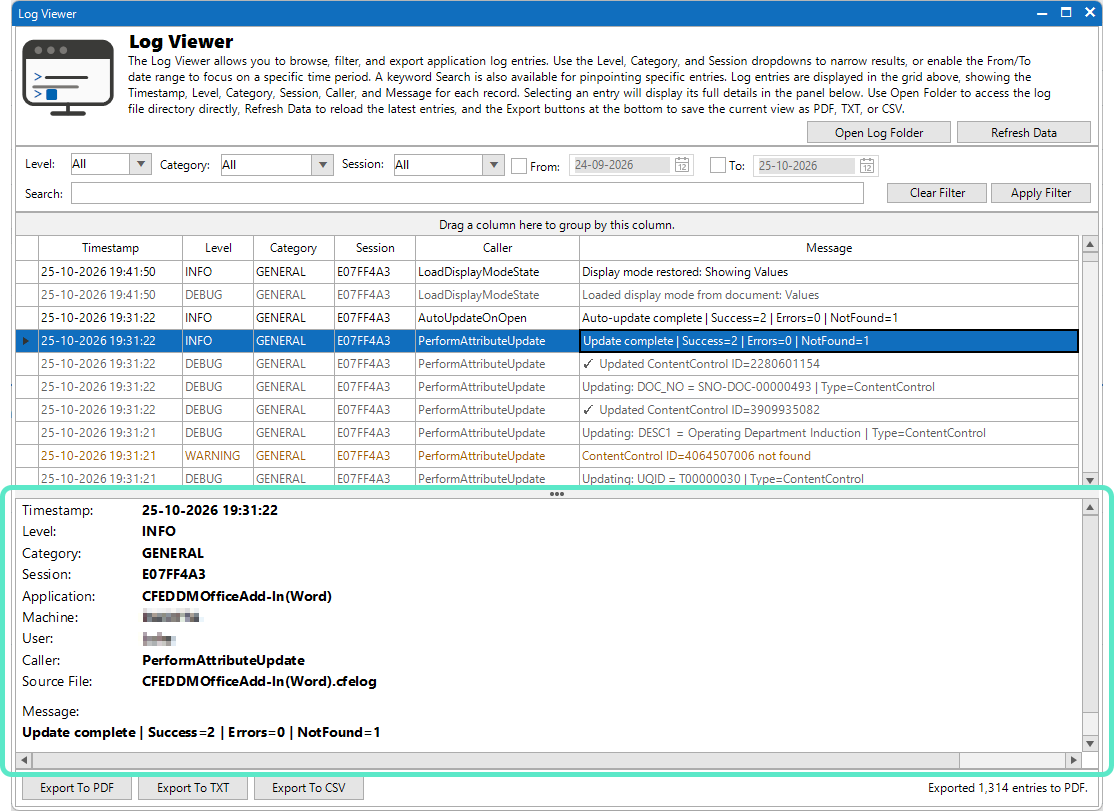
This will then populate the full information of that log entry in the bottom section of the screen.
Export the Log
As well as the transfering the physical log file it is also possible to export the log as either a PDF, TXT or CSV file format. Each of these file formats has its own independant button at the bottom of the window.
When you click on the button you wish to use you will be asked where you would like to save the file and allowed to create your own name for the log file or just use the default one provided.
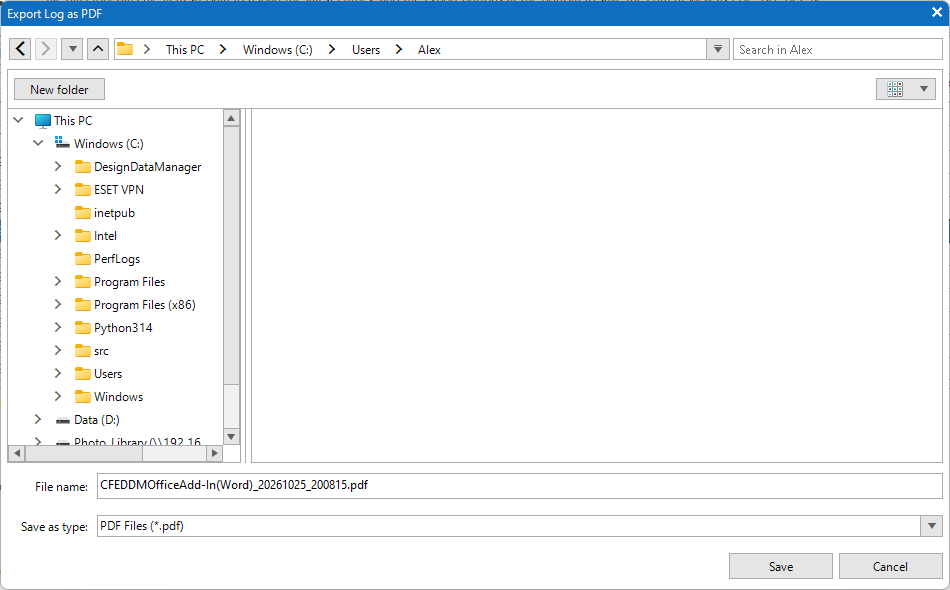
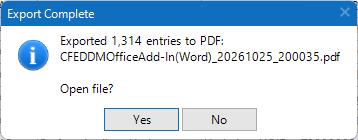
Clicking on Save will start the export and when the file has been exported and created successfully a confirmation message box will be displayed. On this you will be asked if you wish to open the newly created file.